
Blocked slots allow you to make specific appointment dates or times unavailable.
They can be used to manage:
- days off
- holidays
- breaks
- unavailable hours
- recurring closures
- special events
Blocked slots can be configured globally or per product.
How Blocked Slots Work
Each blocked slot contains three main settings:
- Type
- Blocked
- Yearly

The available fields depend on the selected type.
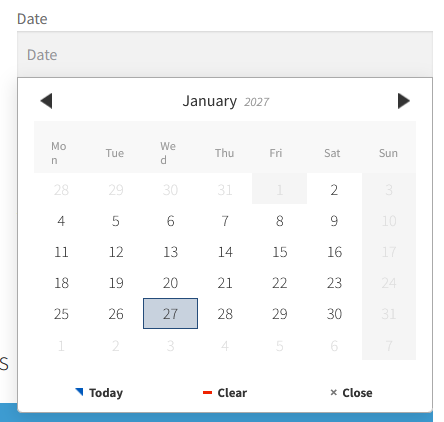
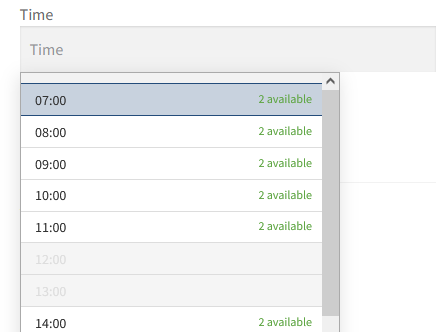
Type
The Type defines what kind of rule will be created.
Available types:
Free Version
- Day
- Date
- Time
- Date range
- Time range
PRO Version
- Day + time
- Day + time range
- Date + time
- Date + time range
- Date range + time
- Date range + time range
The selected type determines which values must be configured in the Blocked field.
Blocked
The Blocked field contains the value that should become unavailable.
Depending on the selected type, this may include:
- a day
- a date
- a date range
- a time
- a time range
Examples
| Type | Example |
|---|---|
| Day | Sunday |
| Date | 2026-12-25 |
| Time | 12:00 |
| Time range | 12:00 – 14:00 |
| Date range | 2026-08-01 → 2026-08-15 |
For date ranges, the end date must be within the same year as the start date. If you need blocked slots across several years, create two separate ranges.
Yearly
The Yearly option is only available for types containing:
- Date
- Date range
When enabled, the blocked slot repeats automatically every year.
This is useful for recurring holidays or annual events.
Example
A blocked slot configured for December 25 with Yearly enabled will automatically apply every year.