
Availability
Availability is managed using WooCommerce stock management.
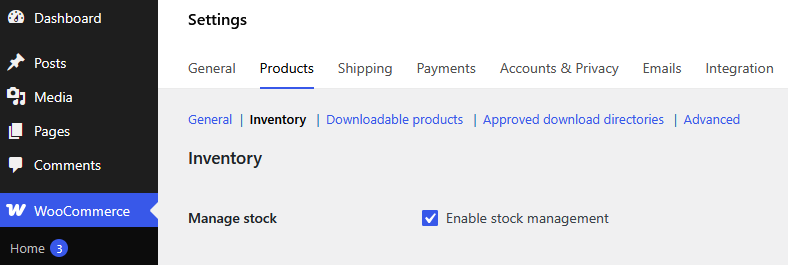
Before using availability limits, make sure stock management is enabled globally.
Enable WooCommerce stock management
- Go to WooCommerce > Settings > Products > Inventory
- Enable Manage stock
Configure product availability
- Edit the product or variation
- Open the Inventory tab
- Enable Stock management
- Set the Quantity
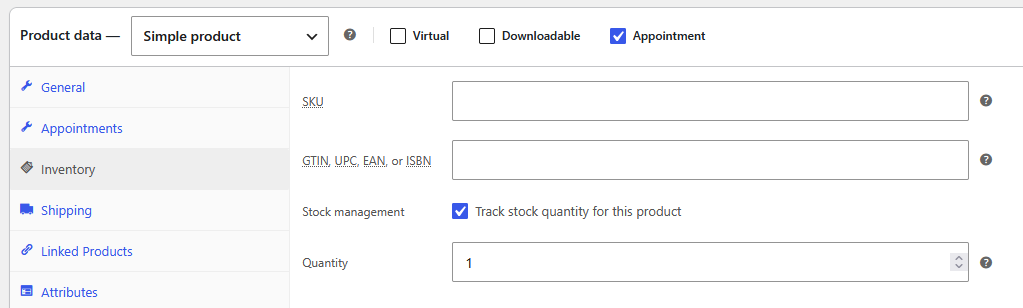
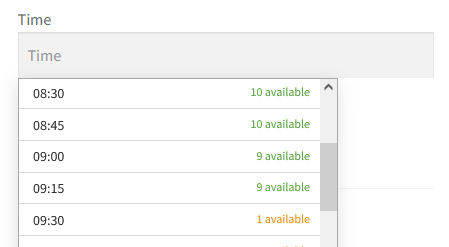
The stock quantity defines the maximum number of appointments available per time slot.
Example
If the quantity is set to 10, up to 10 appointments can be booked for the same time slot.
This can be useful for:
- group classes
- workshops
- events
- shared appointments
Variable Products
Variable products support multiple availability management methods.
Shared availability
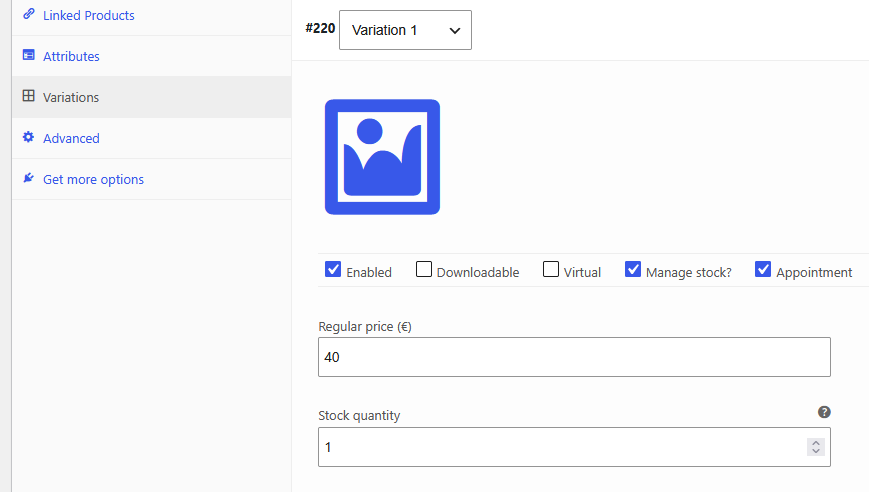
Enable Stock management on the parent product to share availability between all variations.
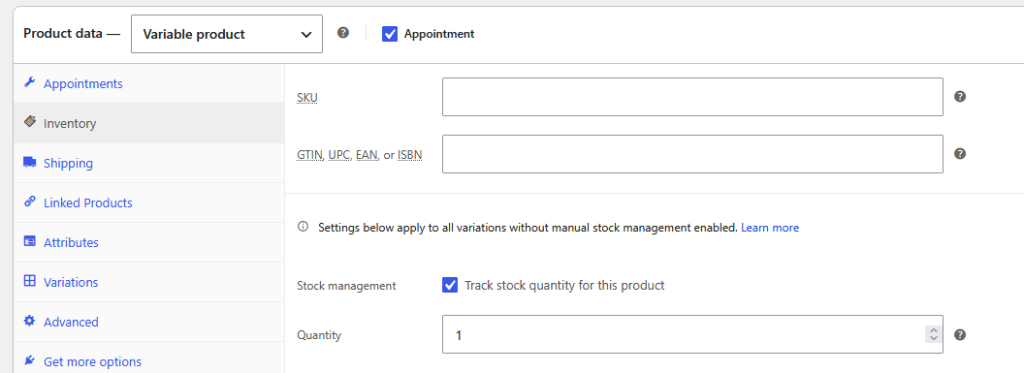
Independent availability
Enable Stock management on individual variations to manage availability separately for each variation.
This allows each variation to have its own appointment quantity and availability.
Mixed configuration
You can also combine both methods depending on your needs.
Example
A beauty salon could use:
- shared availability for multiple haircut variations handled by the same staff member
- independent availability for services managed by different employees
This provides flexible availability management for complex appointment setups.