
PRO version only
Availability settings are located in Easy Scheduling > Settings > Availability
These settings control how appointment availability is displayed.
Availability display mode
Control how availability information is displayed for appointment times.
Available modes:
- None
- Colors
- Availability
- Availabilityand colors
- Colored background
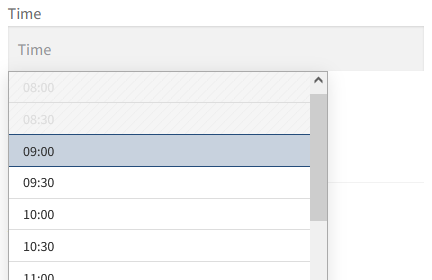
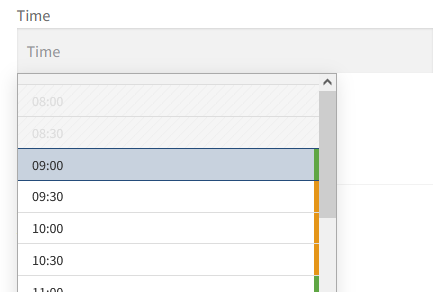
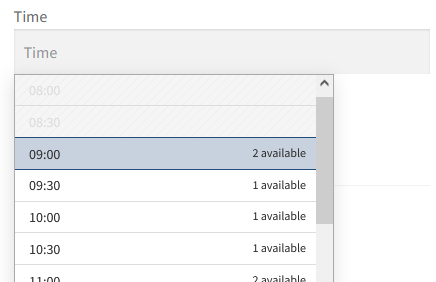
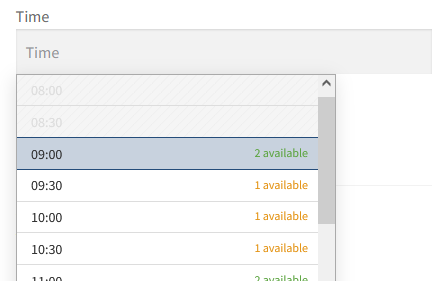
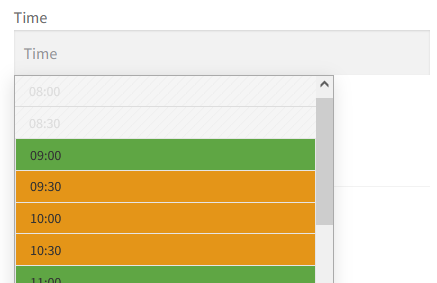
Depending on the selected mode, customers can see:
- availability levels
- remaining slots
- visual color indicators
These indicators are displayed directly in the available appointment times.
Availability colors
For color-based display modes:
- low availability is displayed in orange
- high availability is displayed in green
The low availability threshold is defined in WooCommerce > Settings > Products > Inventory > Low stock threshold
Important
Availability indicators are not displayed on grouped or bundle products.
Quantity display
For the Availability and Availability and colors display modes, the quantity shown to customers depends on the WooCommerce Stock display format setting located in WooCommerce > Settings > Products > Inventory > Stock display format.
Available options:
- Always show quantity remaining in stock e.g. “12 in stock”
- Only show quantity remaining in stock when low e.g. “Only 2 left in stock”
- Never show quantity remaining in stock e.g. “In stock”
Easy Schedule uses this setting when displaying availability quantities.
Customize availability texts
The availability messages displayed to customers can be customized using filters.
For more information and examples, see Availability text customization